Argent e2e Tutorial: Record a Mobile Test and Run It in CI
 Błażej Kustra 10 min read
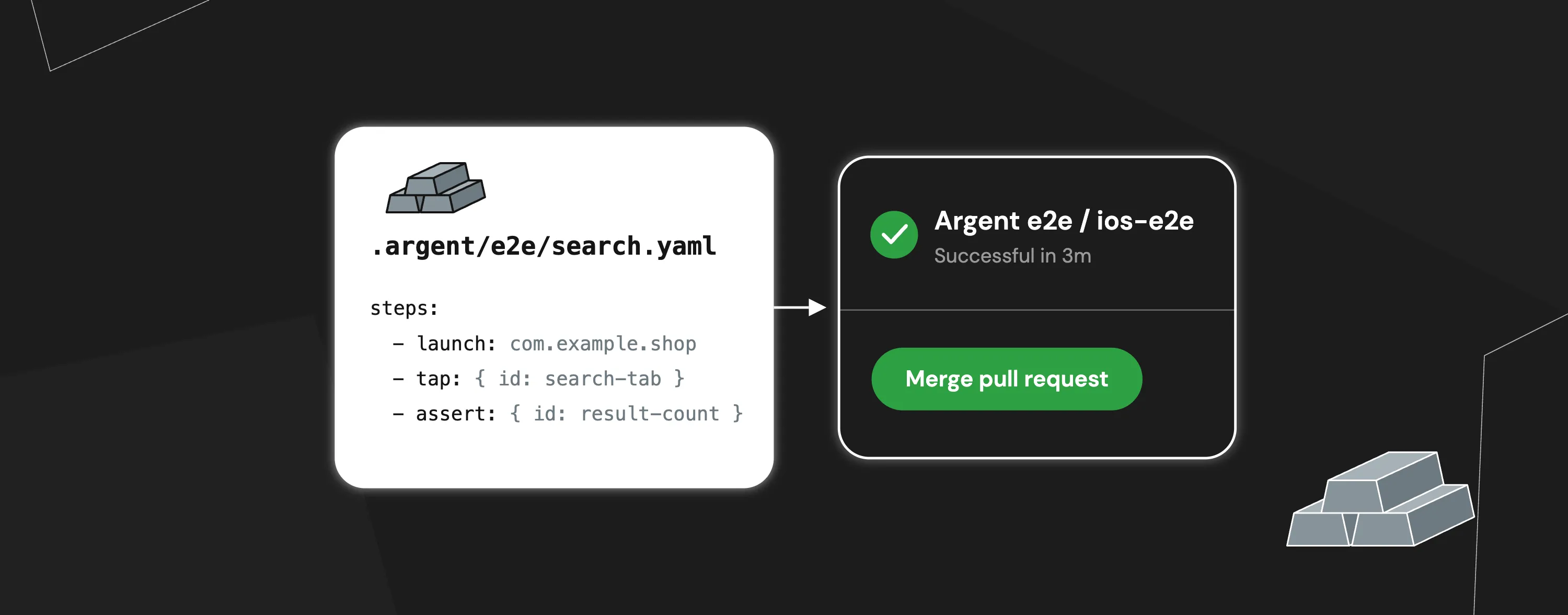
Most mobile e2e suites age the same way: someone sets them up, the UI changes, and nobody has time to rewrite the broken steps by hand. Argent e2e makes those tests cheap to write and to keep. Your coding agent walks through the app once, Argent saves the path as a short YAML file, and argent e2e run replays it with no AI model in the loop. I work on Argent at Software Mansion. In this tutorial you’ll take an existing iOS app from zero to a GitHub Actions job that runs its e2e tests on every pull request.
How does an Argent e2e test work?
An e2e test is a YAML file in .argent/e2e/ of your repo. Your agent records it, or you write it by hand. You commit it and review it in a pull request like any other code. The same file runs on your laptop and in CI. When a step fails, either the app has a bug you fix, or the UI changed on purpose and you ask the agent to record that step again.
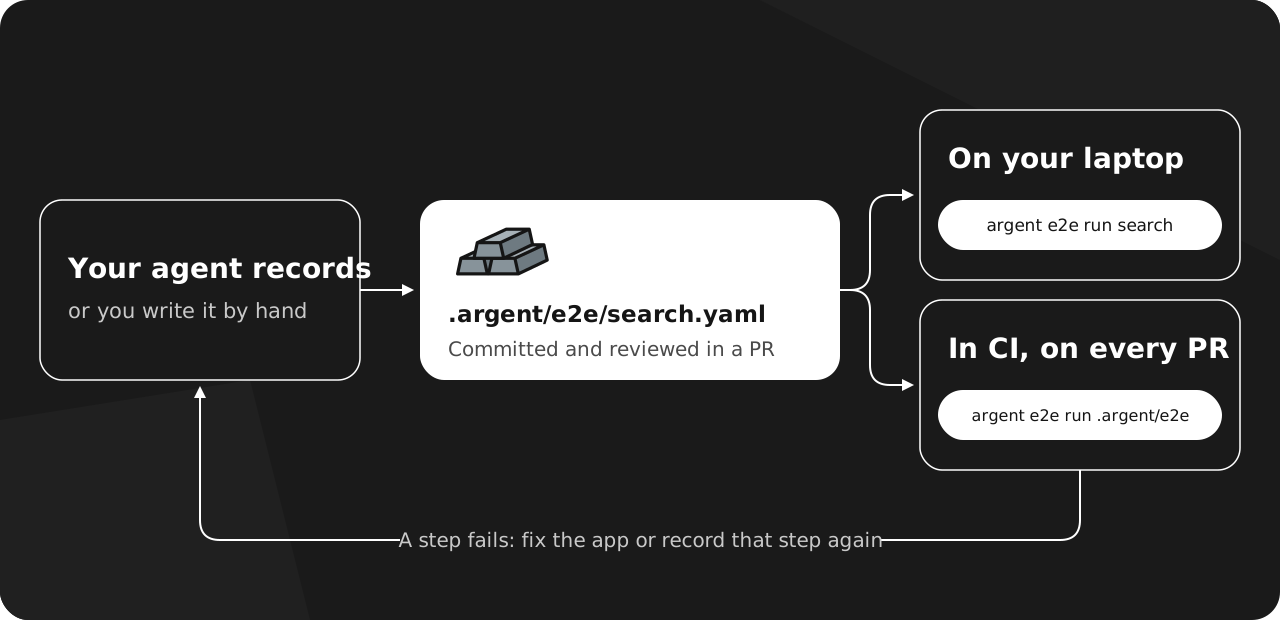
The file never stores a device id, so the runner picks the device at run time. A test recorded on your iPhone simulator runs on a teammate’s simulator or an Android emulator too.
You’ll need:
- macOS with Xcode for the iOS simulator,
- an app you can build for the simulator (native iOS, React Native and Expo all work),
- a coding agent such as Claude Code, Cursor or Codex for the recording step. Running the tests needs no agent.
Step 1: Install Argent
Run the installation wizard:
npx @swmansion/argent@latest initThe wizard installs Argent, registers the MCP server in your editor and adds Argent’s skills, which teach the agent how to record a test. Add --local to pin Argent in your project’s devDependencies so the whole team runs the same version.
Step 2: Give your key screens stable ids
Argent finds elements by id (accessibilityIdentifier on iOS, testID in React Native, resource id on Android), by visible text or by role. Ids survive copy changes and translations, so a test that uses them breaks far less often than one that matches on text.
Give every screen you want to check one element whose id exists only on that screen, for example search-screen. The test waits for it to prove the navigation happened. If an element you tap has no stable id or text, the agent records the tap as coordinates and warns you. Coordinates break when the layout moves, so add the id and record that step again.
Step 3: Record your first test with the agent
Boot a simulator with your app installed, then ask your agent. The examples below use a shopping app with the bundle id com.example.shop, so swap in your own:
Opus 5.5 · Claude Max
~/shop
Here is the agent working through Stride, the sample running store app, while it records the test:
The agent performs each step live on the simulator and records it only after it has seen the result. When it finishes, it replays the whole test once, and you get .argent/e2e/search.yaml:
steps:
  - echo: Fresh launch, signed-out user
  # Restart the app; app data is kept
  - launch: com.example.shop
  - await: { visible: { id: home-screen } }
  - tap: { id: search-tab }
  # Types and presses Enter
  - type: { into: { id: search-input }, text: running shoes }
  - await: { visible: { id: search-results } }
  # A regex, so any number of results passes
  - assert: { text: { in: { id: result-count }, matches: '^\d+ results$' } }
echo prints a label in the report. await waits up to 7.5 seconds by default, and assert checks the condition right away.
You can write or edit the same file by hand. The e2e YAML reference lists every step type, including when for optional steps such as a cookie banner, run for reusing a login sequence and snapshot for comparing a screenshot against a baseline.
Step 4: Run the test locally
Replay the test by name:
argent e2e run search --platform iosThe CLI starts Argent in the background and prints each step as it finishes:
E2E test "search"
  › Fresh launch, signed-out user
  ✓  1 launch (1.9s)
  ✓  2 await visible id=home-screen (0.0s)
  ✓  3 tap id=search-tab (0.3s)
  ✓  4 type into id=search-input ← "running shoes" (3.0s)
  ✓  5 await visible id=search-results (0.0s)
  ✓  6 assert id=result-count matches /^\d+ results$/ (0.0s)

PASS (started on 29095641-BF4E-4BB4-BDAC-8E7D71F04C71) — 6 passed, 0 failed, 0 errored, 0 skipped (5.6s)
The command exits with code 0 when the test passes and 1 when it fails, which is all CI needs. When a step fails, Argent stops the test, marks the remaining steps as skipped and takes a screenshot of the device. With --output e2e-artifacts, the screenshot lands in e2e-artifacts/search/step-<n>-screen.png.
To run every test, pass the folder instead of a name:
argent e2e run .argent/e2e --recursive --platform iosA folder run keeps going after a failed test. At the end it lists each failed test with the step that failed, the reason and a re-run: command for that test alone.
How do I run the tests in GitHub Actions?
The workflow below builds the app, boots an iPhone simulator, installs the app and runs every test in .argent/e2e. It comes from argent-e2e-example, a small sample app where this exact file runs on every push. Save it as .github/workflows/e2e.yml and replace the project, scheme and app name with yours. A React Native app uses -workspace ios/<App>.xcworkspace instead of -project, and its Release build bundles the JavaScript, so CI needs no Metro.
name: Argent e2e

on:
  pull_request:
  push:
    branches: [main]

jobs:
  ios-e2e:
    runs-on: macos-15
    timeout-minutes: 45
    steps:
      - uses: actions/checkout@v7

      - uses: actions/setup-node@v7
        with:
          node-version: 22

      - name: Install Argent
        run: npm install -g @swmansion/argent

      # The first start on a fresh runner is slow, so start Argent before the tests
      - name: Start Argent
        run: |
          nohup argent server start > "$RUNNER_TEMP/argent-server.log" 2>&1 &
          for attempt in $(seq 1 120); do
            argent server status | grep -q "health:.*ok" && exit 0
            sleep 1
          done
          exit 1

      - name: Build the app for the simulator
        run: |
          xcodebuild \
            -project Shop.xcodeproj \
            -scheme Shop \
            -configuration Release \
            -sdk iphonesimulator \
            -derivedDataPath build \
            CODE_SIGNING_ALLOWED=NO

      # Boot the first available iPhone simulator and keep its id for later steps
      - name: Boot a simulator and install the app
        run: |
          UDID=$(xcrun simctl list devices available --json \
            | jq -r '[.devices[][] | select(.name | startswith("iPhone"))][0].udid')
          xcrun simctl bootstatus "$UDID" -b
          xcrun simctl install "$UDID" build/Build/Products/Release-iphonesimulator/Shop.app
          echo "UDID=$UDID" >> "$GITHUB_ENV"

      # Pin the device so the run never guesses which simulator to use
      - name: Run the e2e tests
        run: |
          argent e2e run .argent/e2e --recursive \
            --platform ios --device "$UDID" \
            --output e2e-artifacts

      - name: Upload failure screenshots
        if: failure()
        uses: actions/upload-artifact@v7
        with:
          name: e2e-artifacts
          path: e2e-artifacts
          if-no-files-found: ignore
On a GitHub-hosted macos-15 runner the whole job takes about five minutes. Booting the simulator takes most of that, and the test itself runs in about 30 seconds. The CI job needs only the CLI, so it skips argent init. When a check goes red, the uploaded artifact holds the screenshot of the step that failed, so you can usually tell what broke without re-running anything.
Here is what that looks like on a pull request that renames the result count label from “3 results” to “3 items”. The check fails at the assert step, and the artifact shows the screen at that moment. The log says element matched id="result-count" but its text was "3 items". You can open the failing demo pull request yourself.
Can I run the same tests on Android?
Yes, the same YAML runs on an Android emulator. Use a Linux runner with KVM on Ubuntu 24.04 or newer, set ARGENT_EMULATOR_NO_WINDOW=1, boot an emulator, install your APK and run argent e2e run .argent/e2e --recursive --platform android. If your iOS and Android apps have different ids, give launch one per platform: launch: { ios: com.example.shop, android: com.example.shop.android }.
What are the limits?
- One device per run. Each
argent e2e runreplays on a single device. To cover several devices or both platforms, run the command once per device, for example in separate CI jobs. - App data persists.
launchrestarts the app but keeps its data, accounts and backend state. If a test creates an item, every run creates it again. Reset state with ascriptstep that runs a local.mjsfile before the launch. - Coordinates are fragile. A tap recorded as coordinates breaks when the layout changes. Give the element an id and record that step again.
- Tests run one after another. Split the folder across jobs if the suite grows.
- macOS runners cost more. GitHub bills macOS minutes at a higher rate than Linux.
--platform ios-remoteruns the tests on hosted iOS simulators instead, for example with Argent Cloud.
Key takeaways
- An Argent e2e test is a YAML file in
.argent/e2e/that you commit and review like code. - Your agent records the test once.
argent e2e runreplays it with no model calls and no tokens. - Stable ids on key screens keep tests from breaking when copy or layout changes.
- In CI, pin
--platformand--device, and upload--outputso a red check comes with a screenshot. - When you fix a bug with your agent, ask it to record the reproduction as a test. The agent loop case study shows how the agent reproduces bugs on its own.
To see the whole setup in one place, clone argent-e2e-example: the app, the test and the workflow from this post. The Record and replay e2e tests docs cover the rest.
FAQ
Is Argent e2e a separate package?
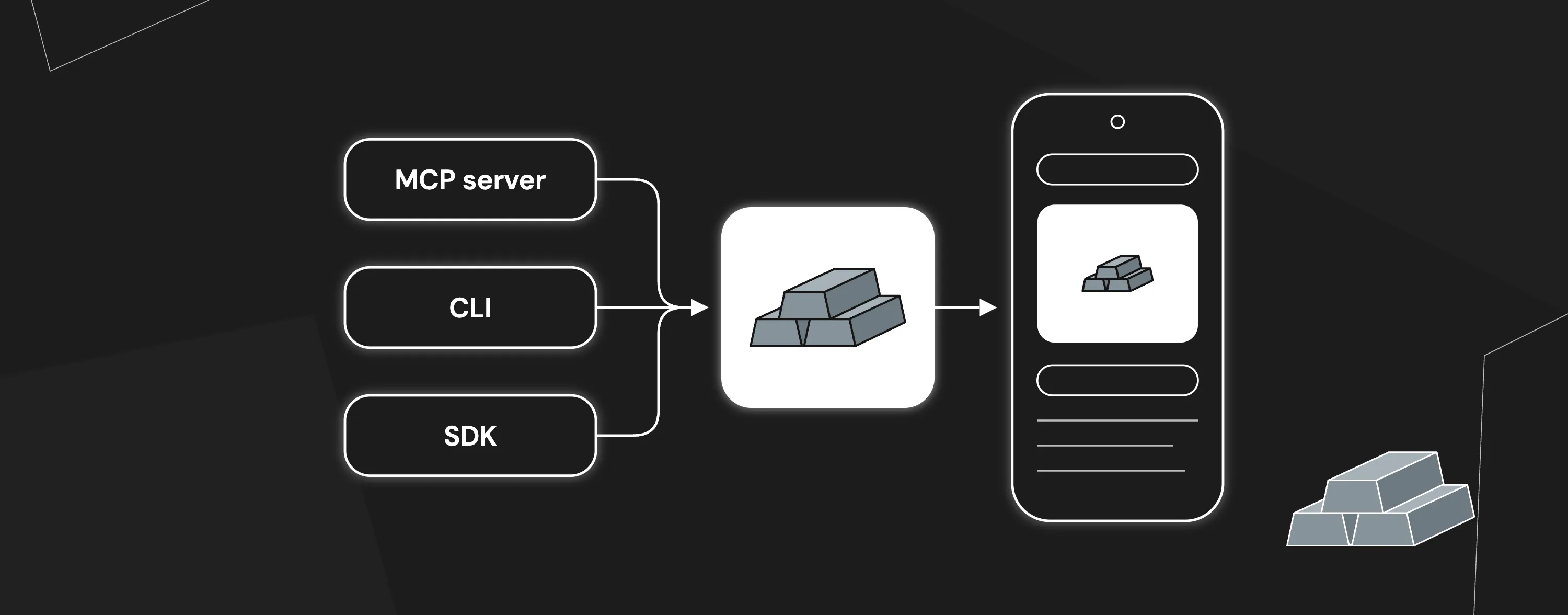
Argent e2e is part of @swmansion/argent. The recording tools live in the MCP server and the runner is the argent e2e command.
Do I need an AI agent to run the tests?
Only to record them. argent e2e run replays the YAML without a model, so CI runs cost no tokens.
What happened to Argent flows?
Argent 0.30.0 renamed flows to e2e tests. argent flow and the .argent/flows/ folder still work, and Argent reads tests from both folders. New recordings go to .argent/e2e/.
Which technologies does Argent e2e work with?
Argent e2e drives the app on the device, through the screen and the accessibility tree, so the UI framework behind it doesn’t matter:
- Frameworks: native iOS (UIKit and SwiftUI), native Android (Views and Jetpack Compose), React Native, Expo, Flutter and Kotlin Multiplatform.
- Devices: iOS simulators, Android emulators and devices, Electron and Chromium apps, and Fire TV (Vega). Apple TV and Android TV are not supported.
Each framework has its own way to set the element id you match with id: in the YAML: accessibilityIdentifier on iOS, the resource id on Android, testID in React Native and Expo. For React Native and Expo, use a Release build in CI so the app doesn’t need Metro. In SwiftUI apps on the iOS simulator, match elements by text or role for now, because the runner doesn’t read SwiftUI accessibility ids yet.
.BpZvBE26_IntGg.webp)